Shopify Prepayment 100% Automated: The Setup Guide
Advance payment with all the benefits, such as low transaction fees or independence from payment providers, but without the extra effort? I'll show you how to automate payment reminders, payment reconciliation, and refunds for Shopify.

Raphael Stolz
Managing Director
Reading time: 7 minutes
Let AI summarize the post
Despite all the advantages that prepayment as a payment method brings, it also entails quite a bit of extra work. This includes reminding customers about outstanding payments, manually checking incoming payments, manually marking orders as paid, and making manual refunds, to name just a few. In this blog post, I’ll show you how to still use prepayment and all its attractive aspects while completely eliminating the extra effort with simple tools.
Setting up prepayment in Shopify
To be able to offer your customers prepayment as a payment option at checkout, you first need to set it up in the settings. Under Settings → Payments, you’ll find the manual payment methods section.
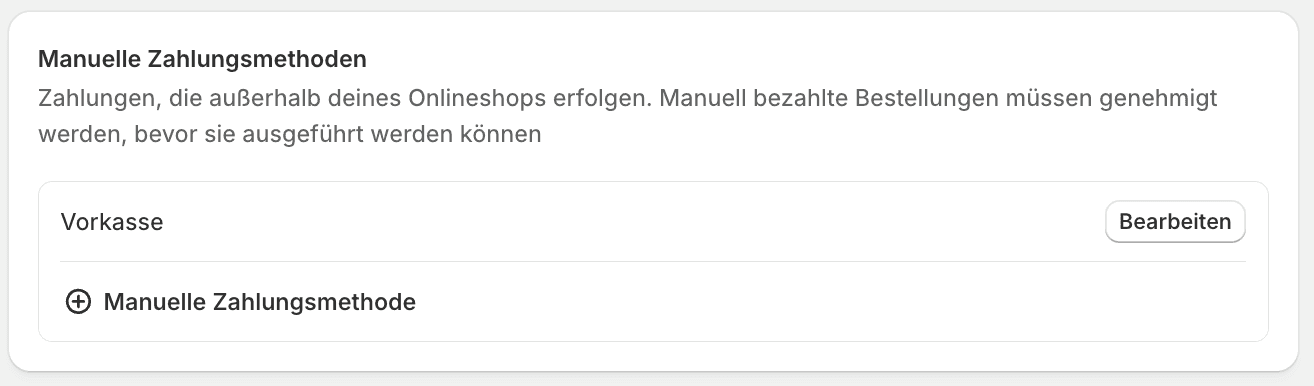
Here you can add prepayment; ours is already set up.
Now adjust the relevant info you want displayed at checkout and on the order status page. In our shop, the settings look like this.
Additional details: Displayed to the customer at checkout when prepayment is selected as the payment method.
Payment instructions: Displayed to the customer on the thank-you page after completing the order. Here you tell the customer how, where, and by when payment should be made.
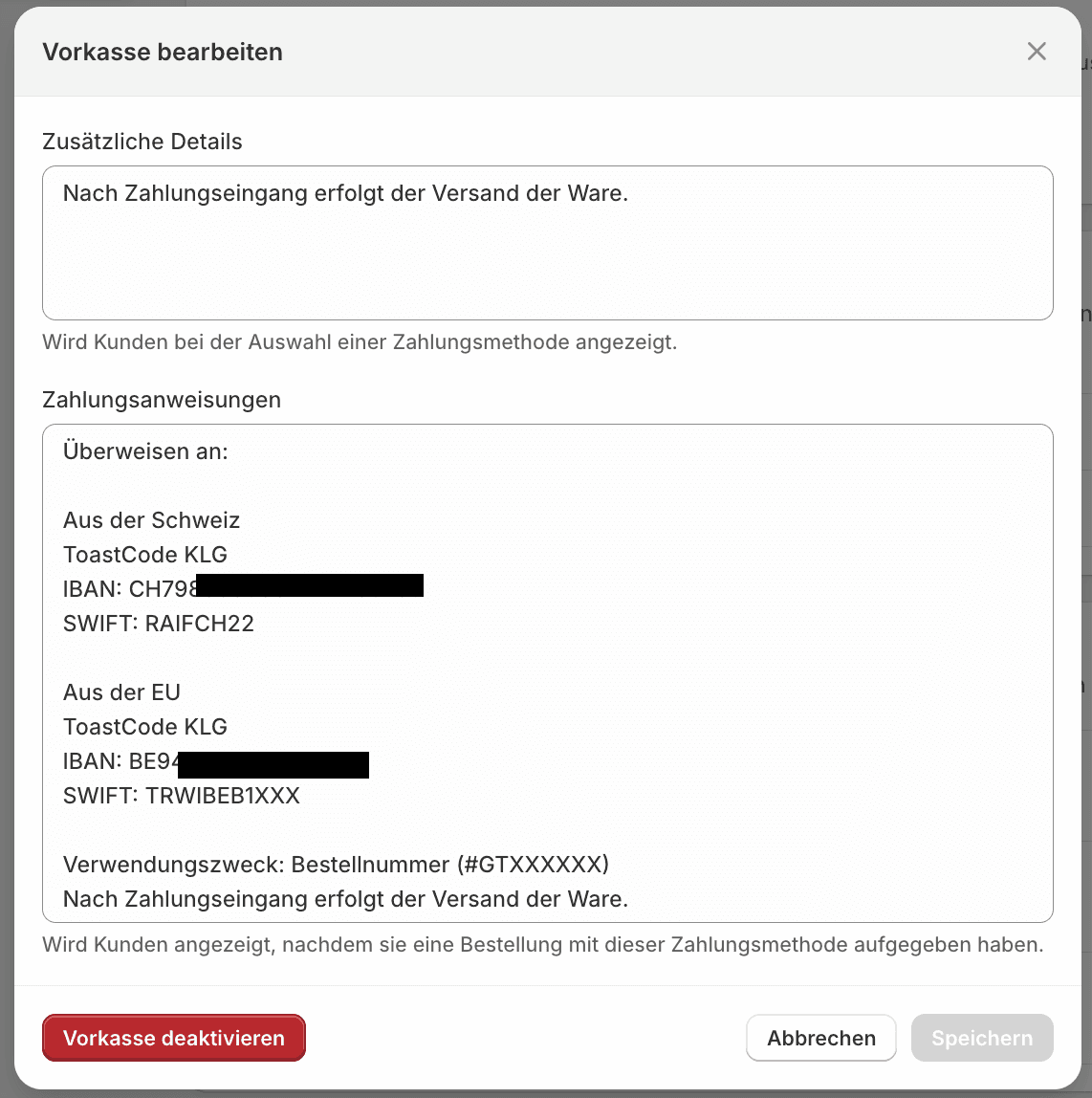
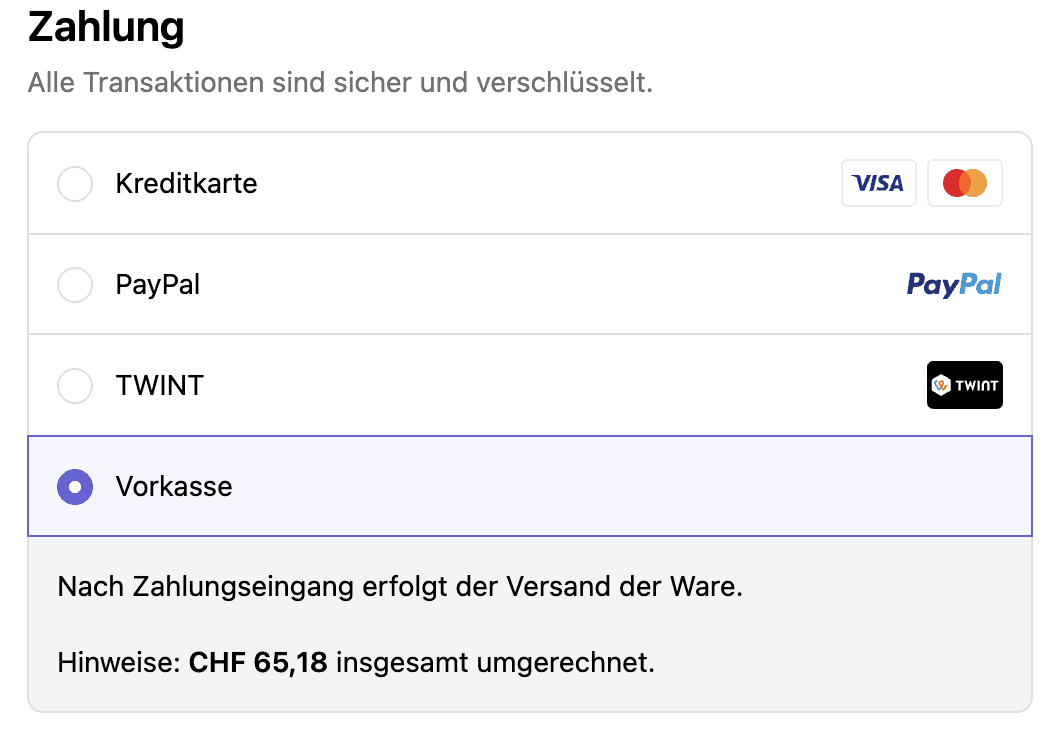
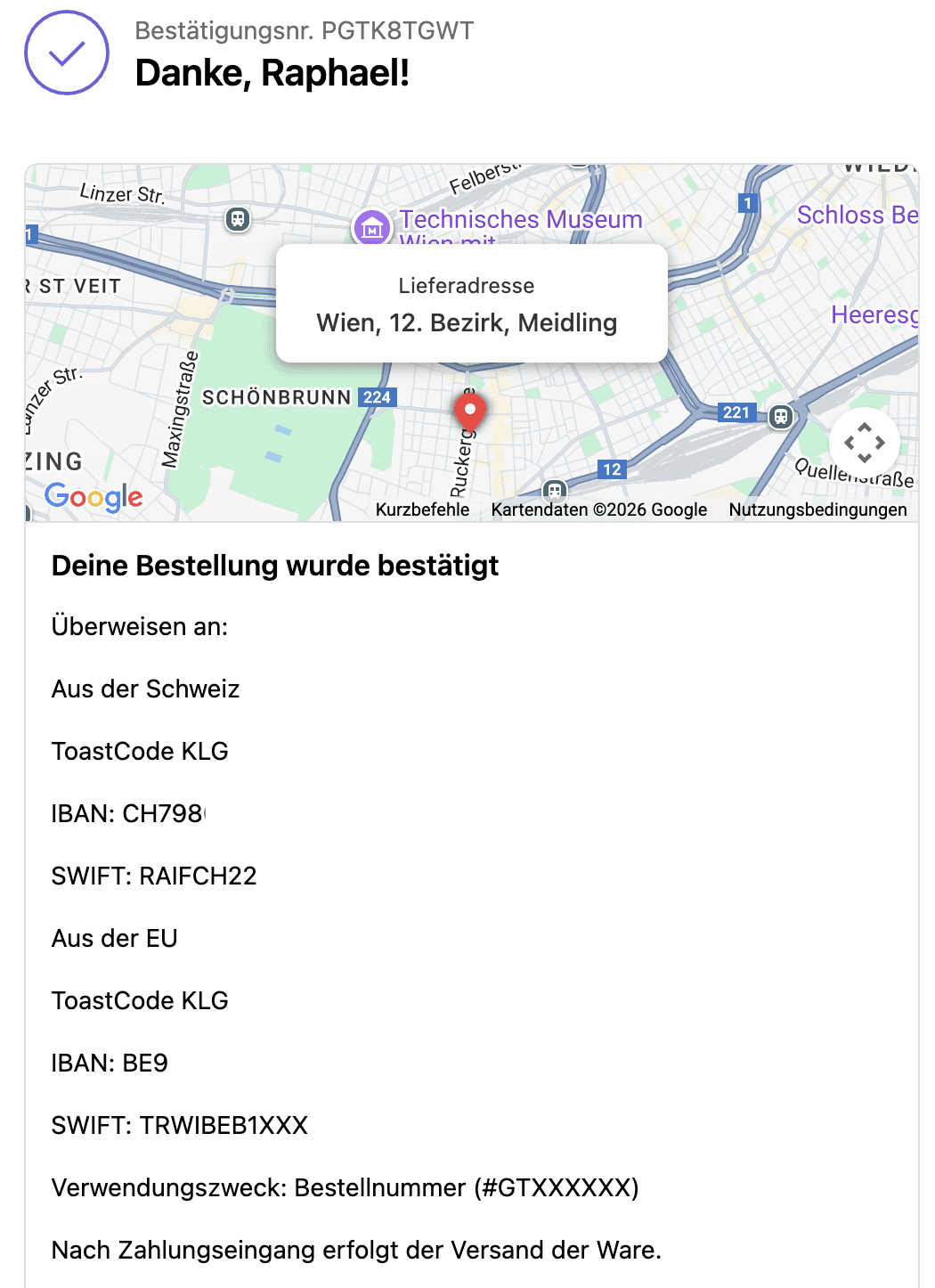
Afterwards, this can be tested very easily by simply placing a test order through the shop. In practice, it looks like this for us.
In checkout, the info text appears under the "Additional details" setting.
On the thank-you page, you then find the payment instructions text. Unfortunately, it is not formatted the way it appears in the settings, but that’s not too bad.
Payment reconciliation with Cleero
Once a customer has placed an order using prepayment, you have to wait for the payment to arrive, verify the successful incoming payment, and then mark the corresponding order as paid. So we don’t have to do this manually, we created Cleero for Shopify. The app connects to your bank and checks your incoming payments several times a day. These are then matched against the open orders in the Shopify backend. As soon as an incoming payment is recognized as belonging to an order, it is assigned to that order and the order is marked as paid.
This saves you the tedious work of constantly checking incoming payments yourself and matching them with open orders. With small order volumes, this effort is still manageable, but as volume increases, it quickly becomes a limiting factor for a shop’s growth.
Customer forgets to pay, what now?
If all customers always paid immediately, I could skip this part of the article. In reality, however, it happens again and again that customers forget to pay for their order after placing it. This means the order cannot be processed further, but the products are already reserved. Everything comes to a halt until the money has arrived.
This is exactly where we need an app that reminds customers with outstanding payments via email or SMS to pay the open amount. Different tools offer different options; let’s look at the most common ones in the Shopify ecosystem.
Sending automated payment reminders
Shopify's own payment reminder option
Shopify, for example, offers a very minimalist option for sending payment reminders. The number of reminders, sending trigger, and reminder content are all available options. For shops
For many, that may be sufficient; however, if you have higher requirements, you need an app with more extensive options, such as Kindly.
If your Shopify plan includes access to Shopify Flow, you can also create your own payment reminder flow. In the Shopify Flow category in the Shopify Community, you’ll find several posts about this.
Shopify Flow + FlowMail (with the help of Sidekick)
To set up payment reminders via Shopify Flow, you need an additional app called FlowMail. The app’s prices currently start at $9.99 per month for 500 Flow runs and go up to $49.99 for unlimited Flow runs.
Create payment reminder workflows via Sidekick prompt
Using Sidekick, Shopify’s built-in AI, you can then create a payment reminder workflow.
For example, you can use the following prompts:
Prompt for payment reminders for open prepayment orders:
Create a workflow for sending payment reminders to customers with open orders using the prepayment payment method. The customer should be reminded after 3, 5, and 7 days.
Prompt for payment reminders for open draft orders:
Create a workflow for sending payment reminders to customers with open draft orders. The customer should be reminded after 3, 5, and 7 days.
Sidekick then creates a workflow for the 3 payment reminders. Important: the reply-to email address still needs to be adjusted so that replies to the payment reminder also reach you. In addition, the workflows must first be added to the shop and then activated.
Unfortunately, there is no preview option for the email here; you would have to check it with a test order after activation. I couldn’t find a better solution.
Customize email template
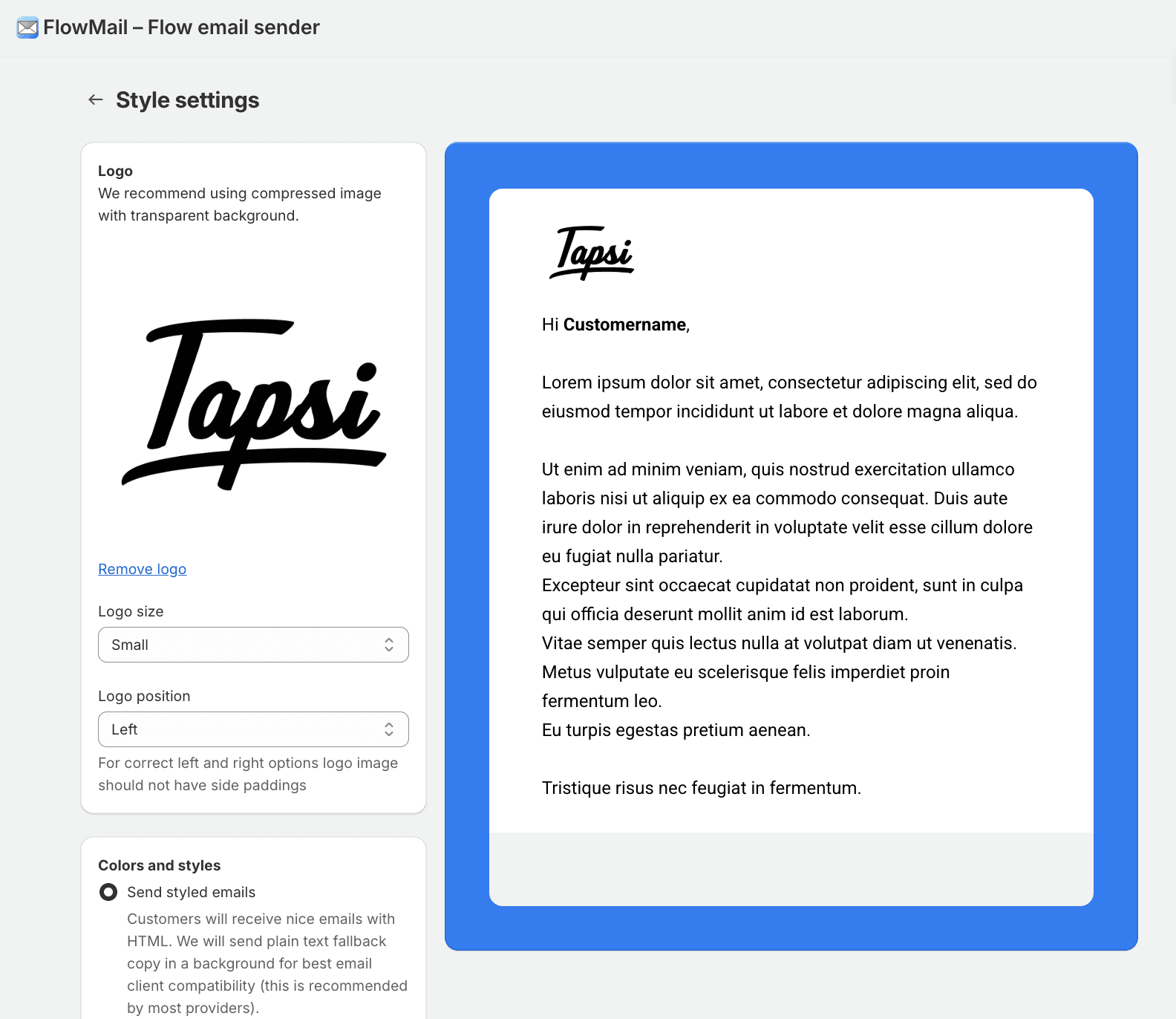
In FlowMail, you can now also customize the email template. The customization options are somewhat limited, but for small shops it’s just about okay. If you really want something professional, you might want to look at Kindly. Those who understand HTML can also create their own completely custom template.
Report on email performance & revenue recovery
Emails are sent and customers are reminded; the work is done. Now the most important part begins: analysis.
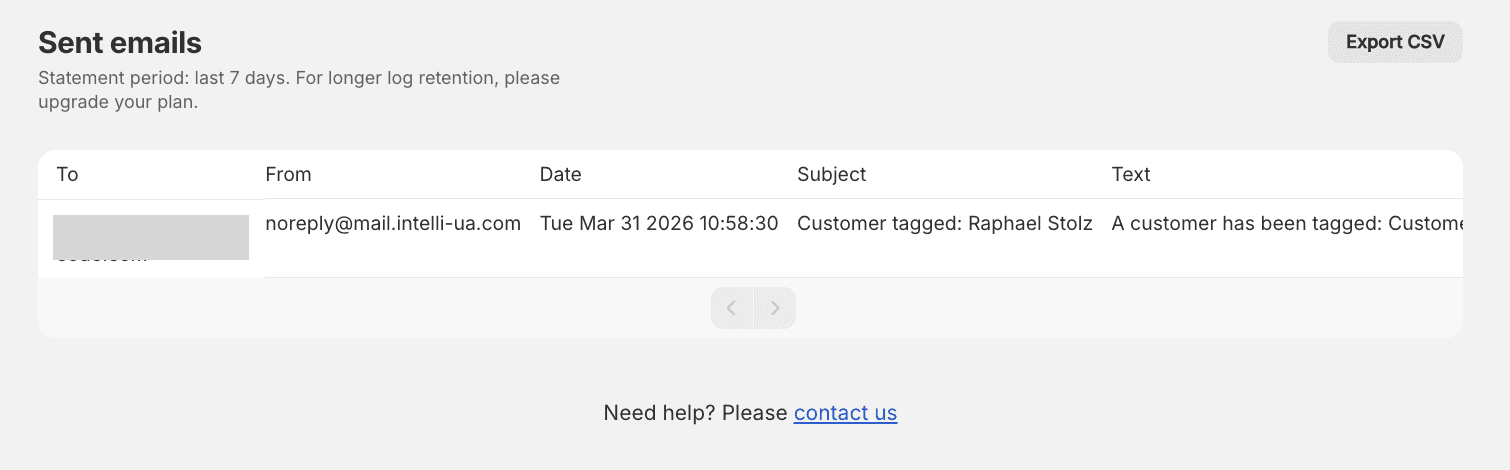
If you don’t want to fly blind, you sit down after about a month and review the success of the payment reminders based on the following points in order to decide on improvements. What is the delivery rate, which reminder is opened the most, when are clicks most frequent, and, above all, how much revenue do my payment reminders actually bring back? Unfortunately, this cannot yet be viewed in Shopify Flow or FlowMail. All FlowMail currently offers is a list of sent emails.
Conclusion
This solution works, but some of it feels like stumbling in the dark. Emails cannot be checked before they are sent to the customer, whether there are errors or emails fail to reach the customer is not communicated, and how much revenue the individual payment reminders recover cannot be determined.
It is a quick and easy solution, but not particularly safe or elegant. In my opinion, it is sufficient for small shops that place relatively little value on guaranteed functionality, security, reporting, and consistent branding. If I don’t know whether emails are getting through, there is no consistent design line, and I don’t even know how much revenue my payment reminders recover, then as a professional online shop owner I would be put off by it. For that, you should rather use specialized apps like Kindly.
Kindly, the payment reminder app for full visibility
Kindly offers much more than Shopify’s standard options. The app makes it possible to create a specific reminder plan for each payment method you want to remind customers about (e.g. prepayment, cash on delivery, invoice,...) and to customize the sending schedule, email and SMS content, cancellation options, and more individually. Kindly also offers professional and conversion-optimized email templates.
Quick overview of what Kindly offers:
Sending payment reminders via email & SMS
Dashboard with an overview of all open orders and their reminder status
Send reminders based on payment methods (prepayment, invoice, cash on delivery)
Filter orders via tags
Professional and conversion-optimized email templates
Full performance report for all reminders (email open & click rates, revenue recovery,...)
Sending times can be restricted to weekdays and times
Automatic cancellation of unpaid orders
Sending emails from your own domain (higher success rate through brand awareness)
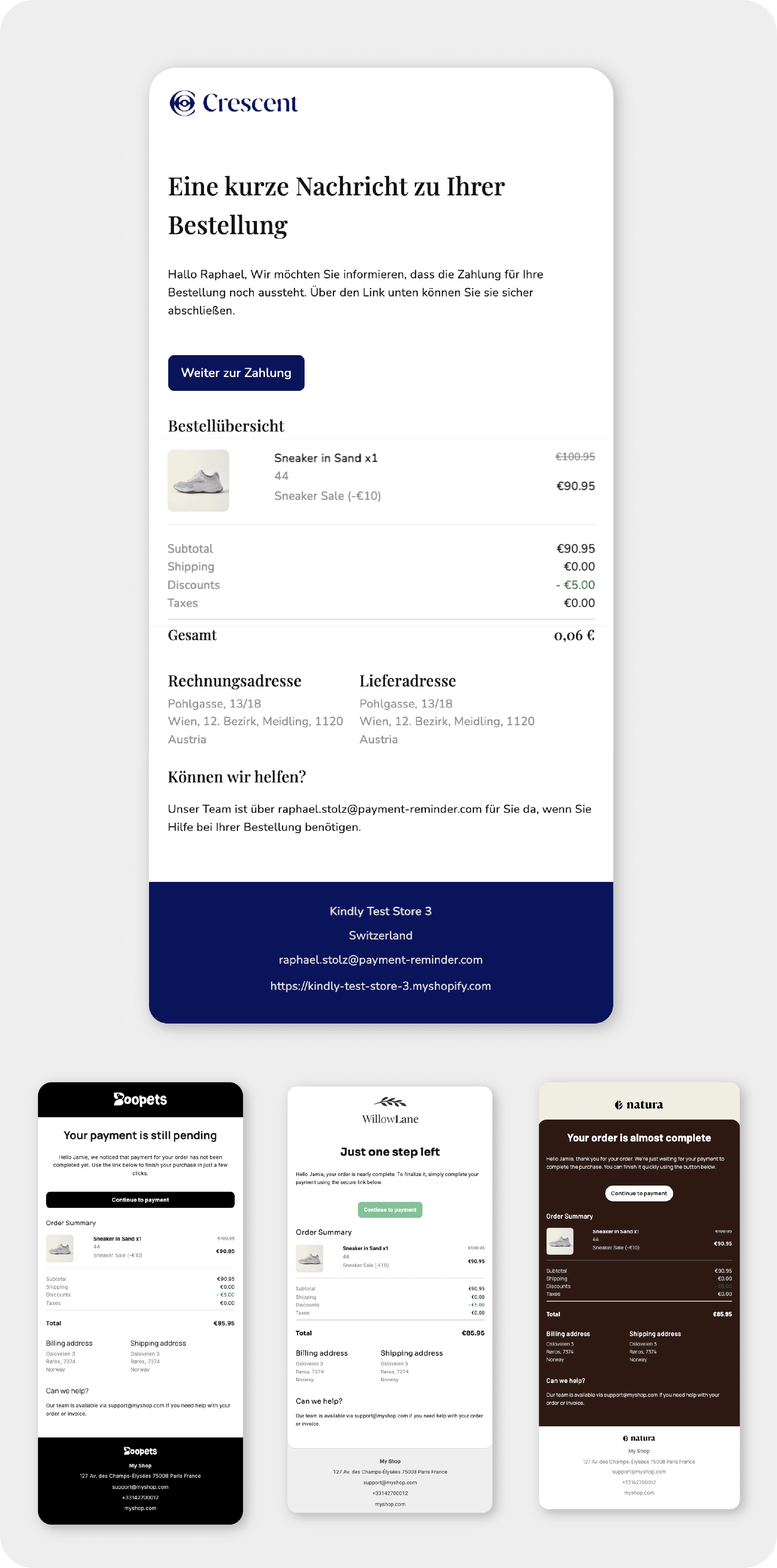
Professional email templates for payment reminders in Kindly (image above)
Set up payment reminders
Go to reminder plans in Kindly and create a new reminder plan.
Here you can easily filter orders, add reminders, and enable email and SMS.
Then you can choose one of our professional email templates in the email template editor and adapt it to your shop brand.
Now activate the autopilot in the top right of your reminder plan settings and professional payment reminders will be sent to customers with open orders.
Report on email performance & revenue recovery
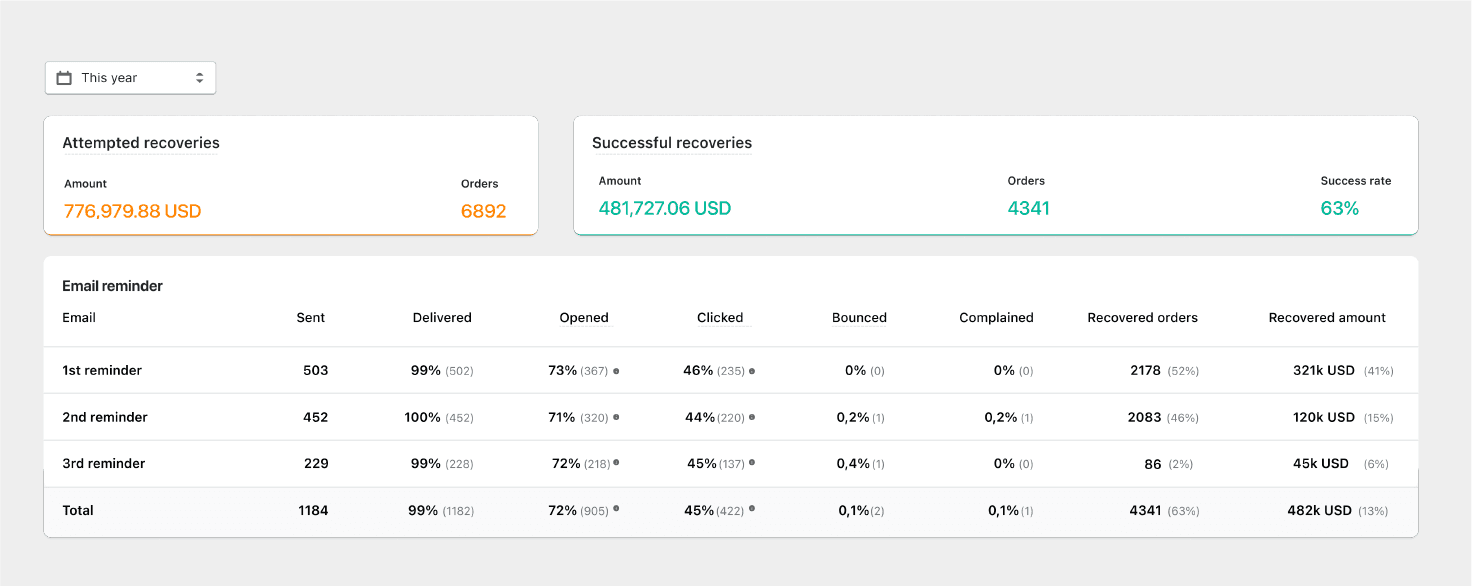
With Kindly, you can review the open, click, and spam rates of individual payment reminder emails after they have been sent. It is also possible to see how much revenue each reminder recovered.
Cost of Kindly
Kindly’s pricing plans start at $15.99/month for 50 order follow-ups (unlimited emails), which is completely sufficient for a small to medium-sized shop. One order follow-up means starting a follow-up for an order regardless of how many emails are sent.
Kindly, the Shopify app, can be installed here in the app store.
Set up payment via QR code
Often, orders are not paid immediately because the path to a successful bank transfer is too cumbersome, which in turn slows down cash flow. Especially in a world where "convenience" is becoming more and more important, a manual bank transfer simply feels outdated and slow. Payment QR codes can significantly shorten the path to transfer. Read our article on how to set up a payment QR code and encourage faster payments.
Refund transfers with Cleero (coming soon)
Share on social media